Serverpack Creator

Serverpack Creator
This guide gives you a step by step method on creating your own server pack for a custom modpack, or a modpack that doesn't have an available server pack yet.
While Server pack Creator can make serverpacks it's not perfect and doesn't have a 100% guarantee in making the serverpack functional. Test to be sure it works.
Requirements!
- Java 21+
- Download Server pack Creator
Terminology
- Server Pack Creator -> SPC (to make it easier to type out)
Part 1. Serverpack creator.
Follow the steps below for your launcher on how to properly use SPC for each launcher. Ensure you select the correct launcher.
The example modpack is Beyond Depth for curseforge & prism, and Homestead for modrinth. Both do not have a serverpack available from their respective platforms natively.
While Beyond depth and Homestead provide their own ways to do their serverspacks, we use these modpacks strictly as examples for SPC as they are good examples of popular modpacks and have a good selection of mods.
- Curseforge
- Modrinth
- Prism Launcher
Steps:
-
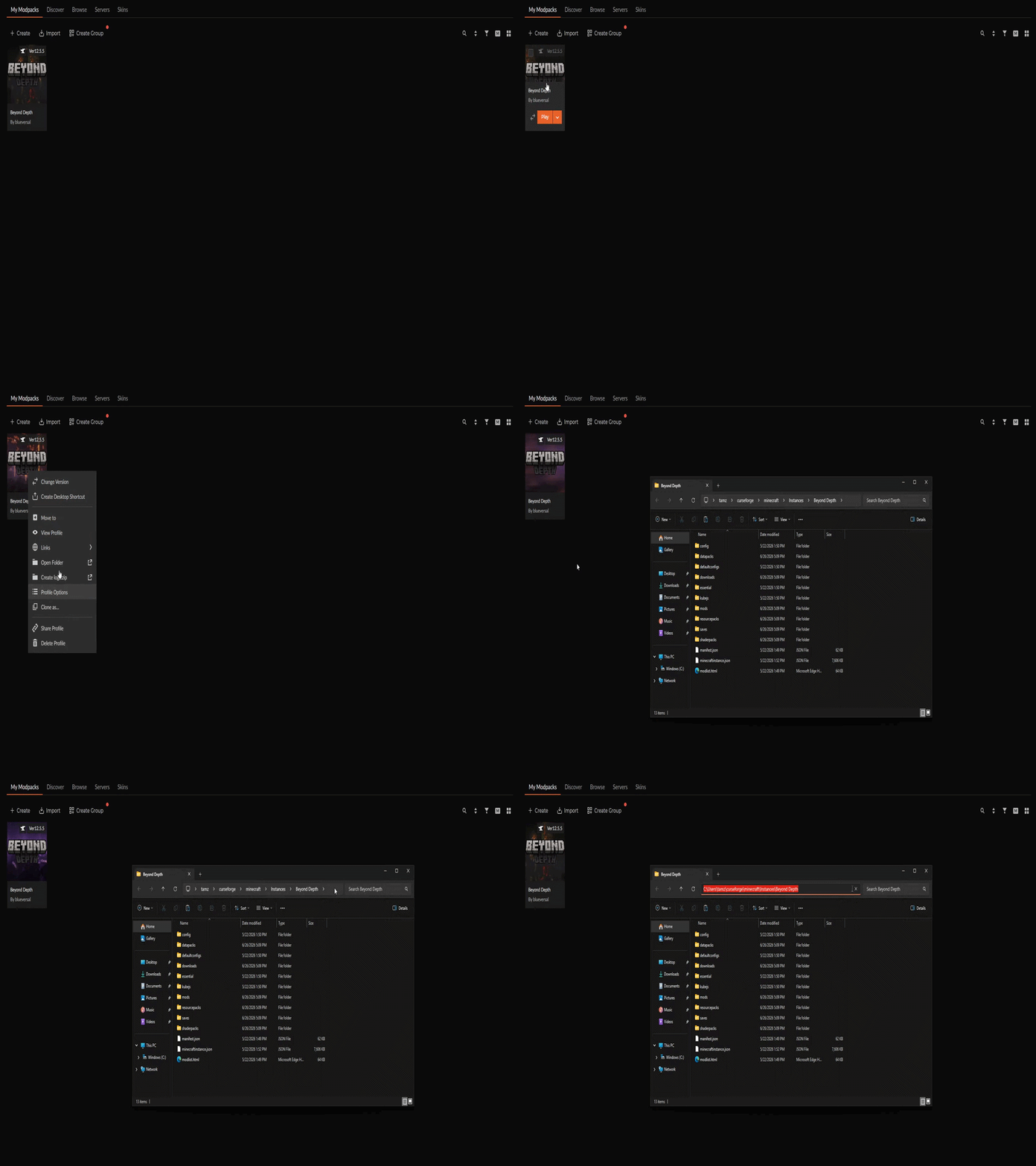
Open SPC and navigate to your modpack folder. To find out the modpack folder, right-click the modpack in the launcher and click "Open Folder". Then read the folder location and navigate to it from SPC.
-
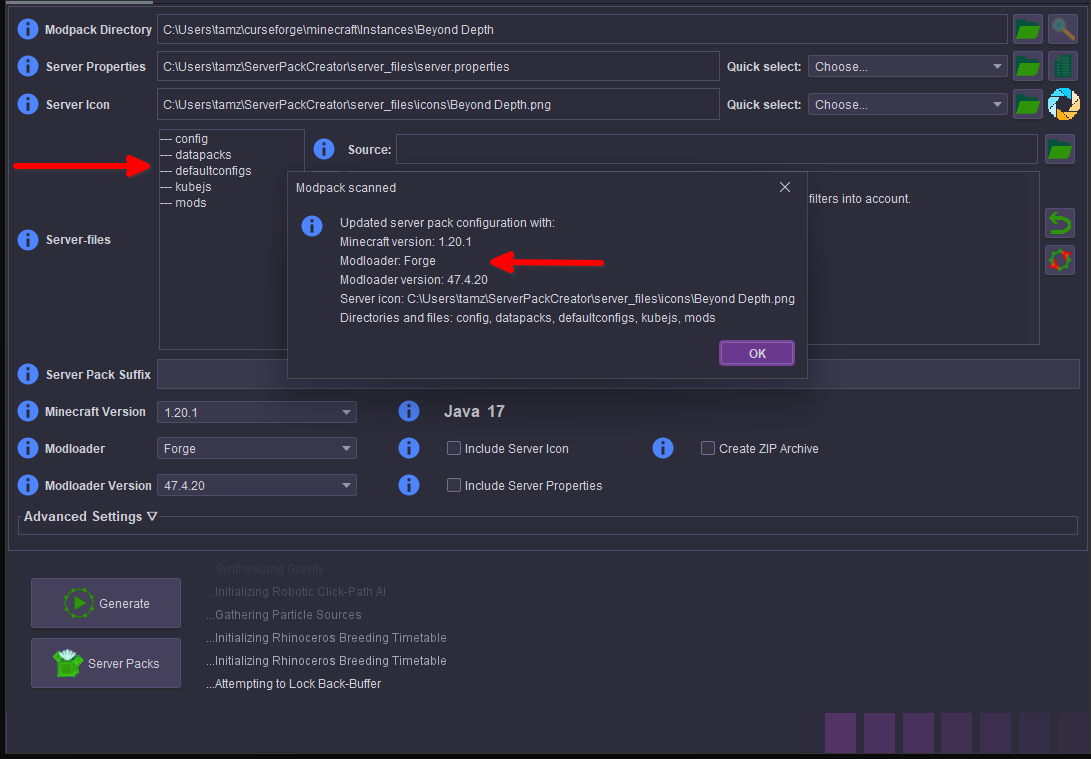
After entering the modpack folder, SPC should automatically detect the mods, configs, and other folders that the modpack uses. It will also detect the Minecraft version, mod loader (software that loads mods), and mod loader version.
-
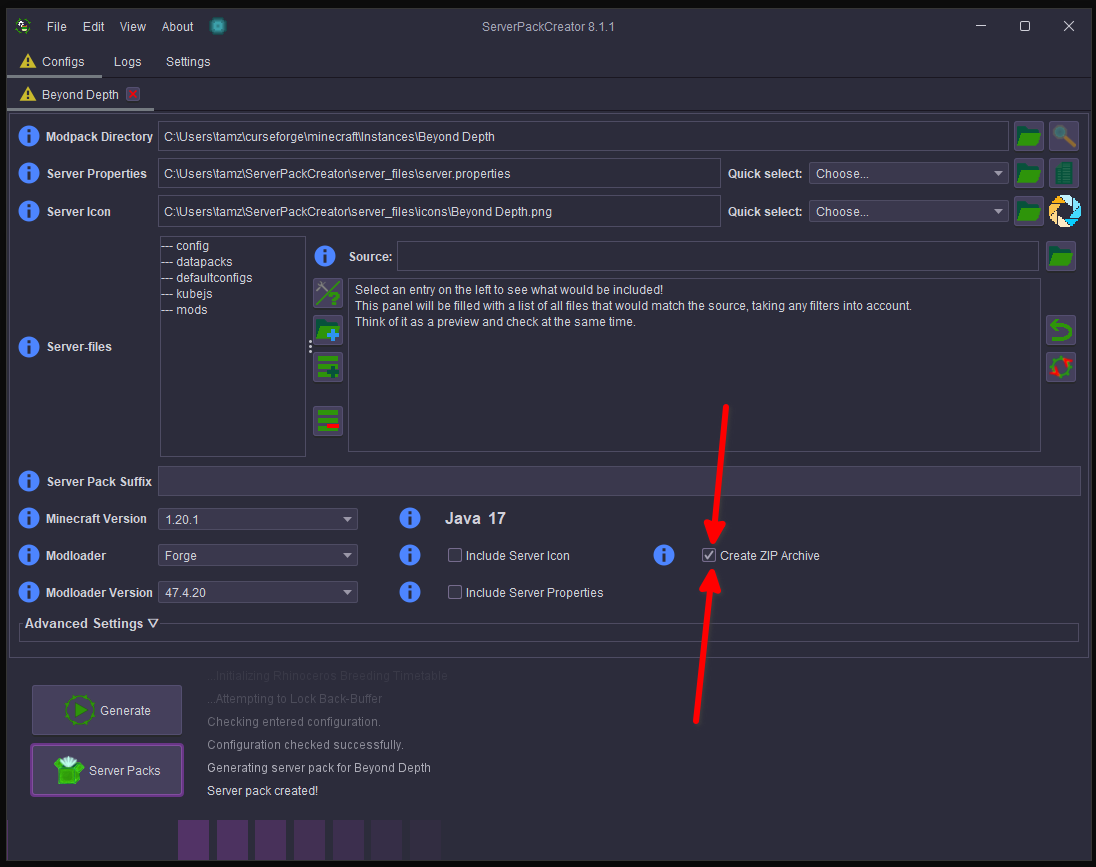
If all details are correct from step 2, click Create ZIP Archive, then Generate, and wait.
-
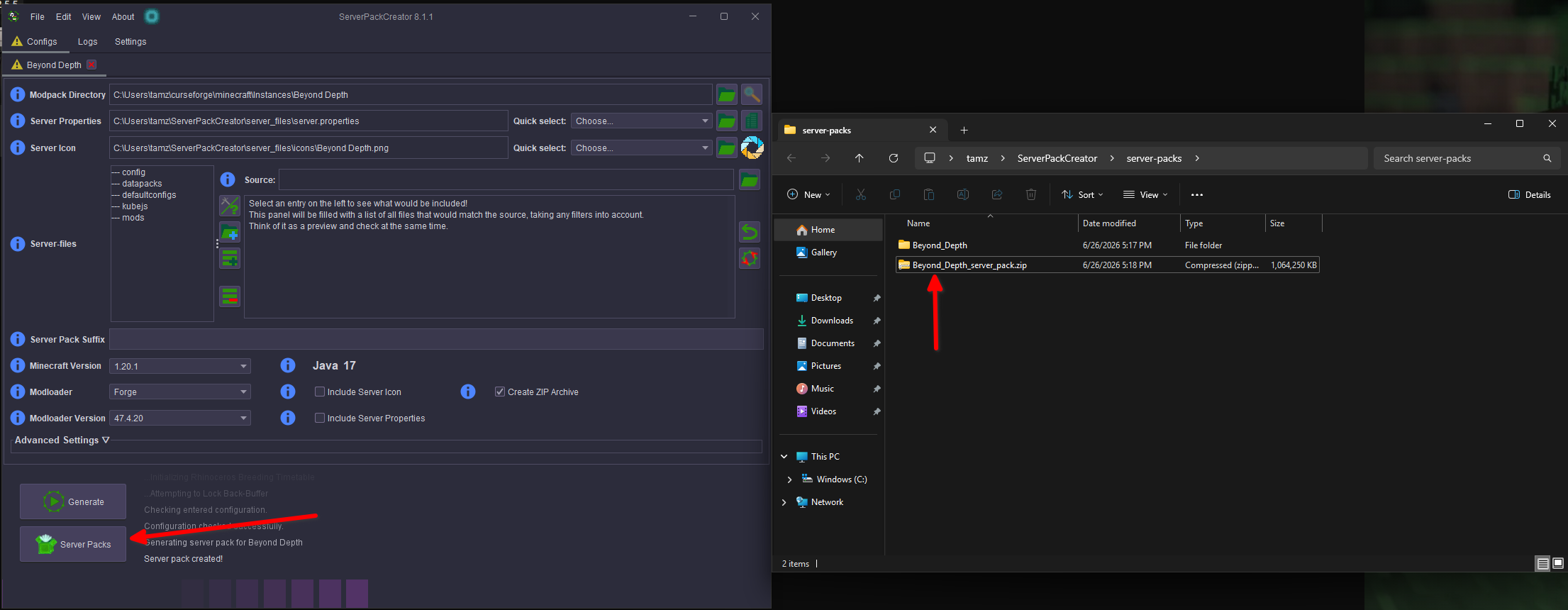
If successful, you will be prompted to open the Serverpacks folder. Select No. Instead, press Server packs under the generate command.
-
Once done, move on to part 2 of the guide below.
Steps:
-
Open SPC and go to your modpack folder. To find the folder, left-click your modpack icon on the left, select the three dots at the top right, and choose "Open Folder." Note the folder location and navigate to it in SPC.
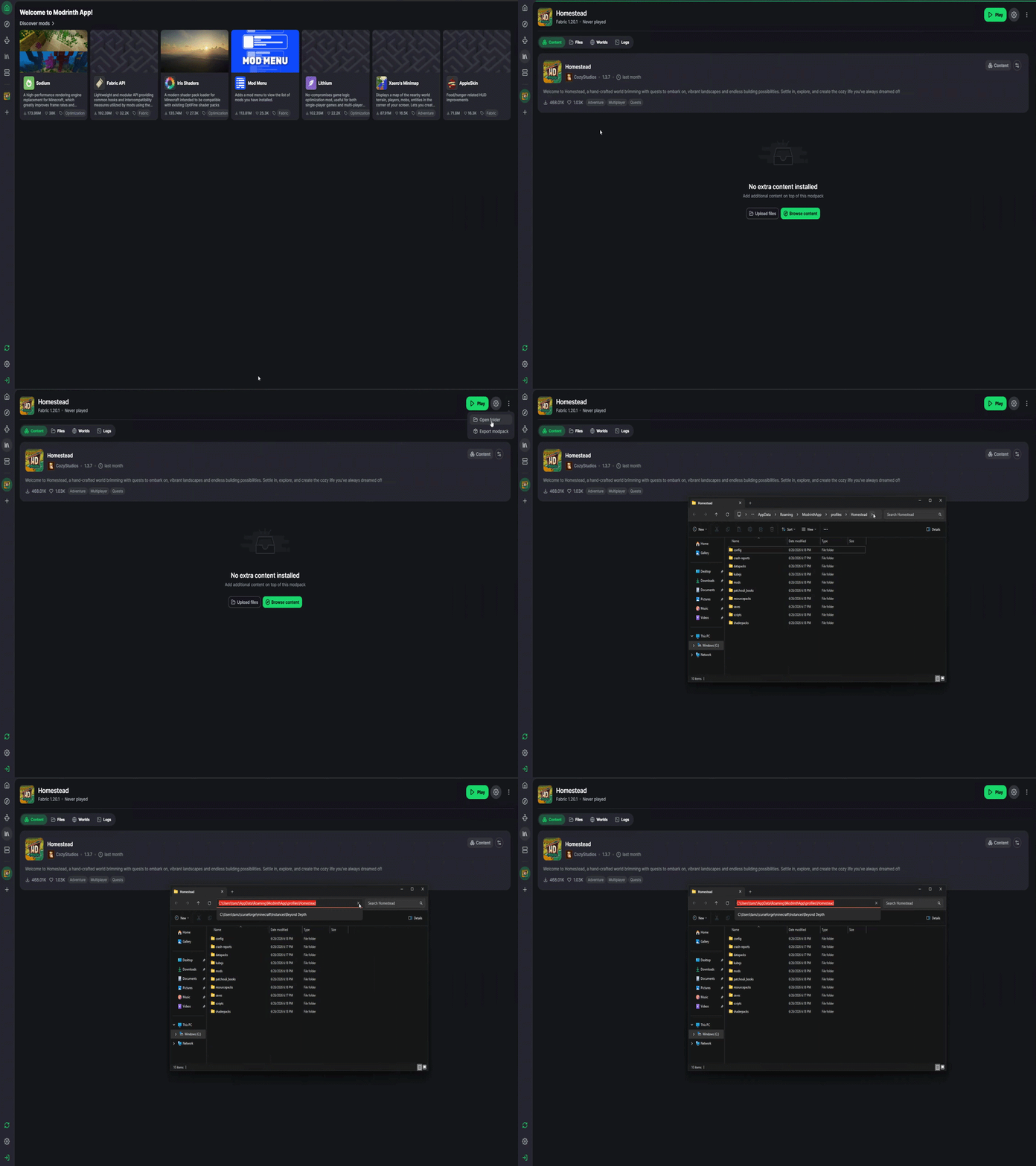
-
After entering the modpack folder, SPC should automatically detect the mods, configs, and other folders that the modpack uses. If it does not auto detect the version of the loader, you can follow the gif below to know the correct process.
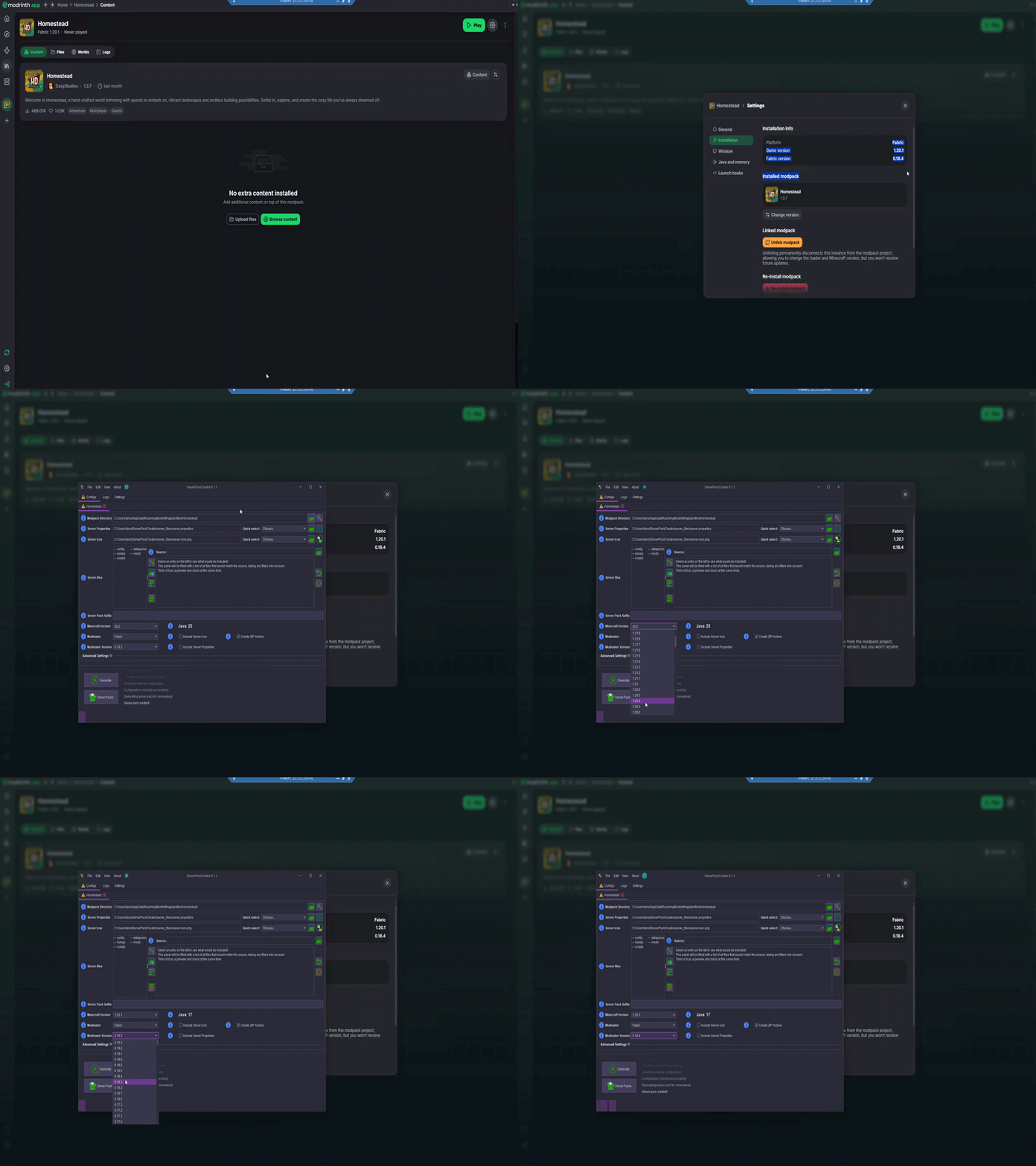
-
If all details are correct from step 2, click Create ZIP Archive, then Generate, and wait.
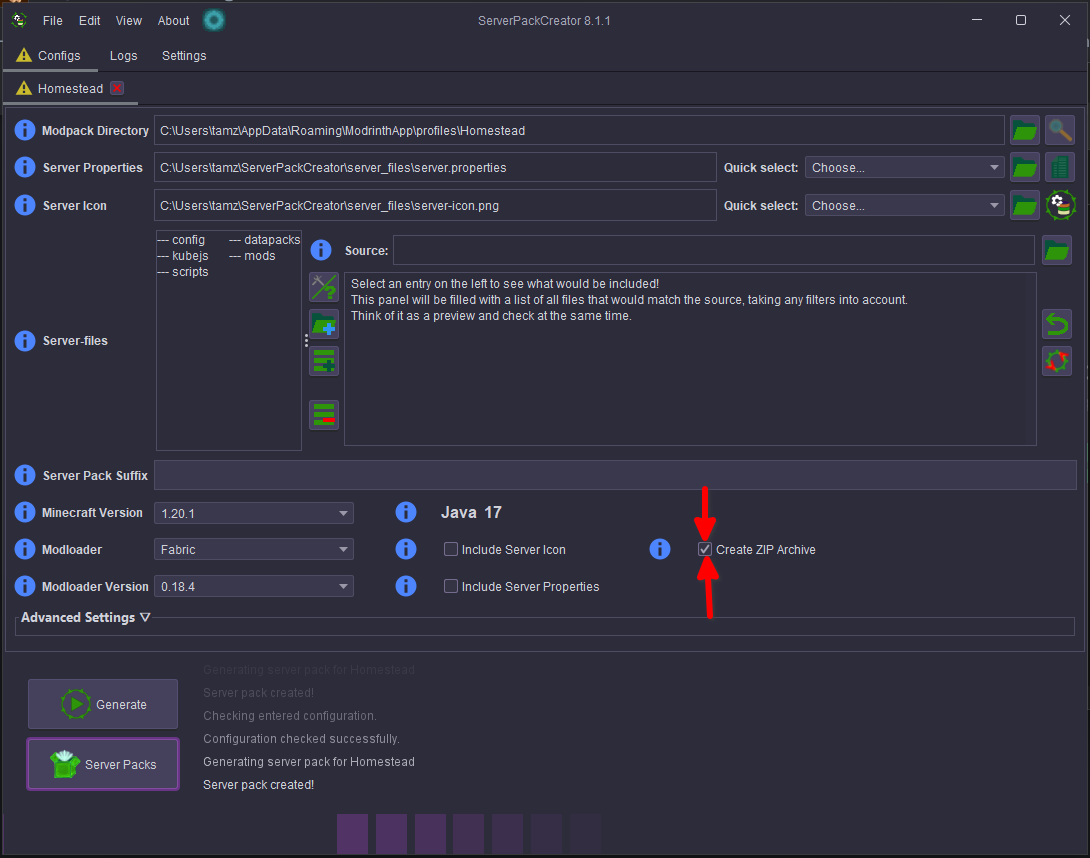
-
If successful, you will be prompted to open the Serverpacks folder. Select No. Instead, press Server packs under the generate command.
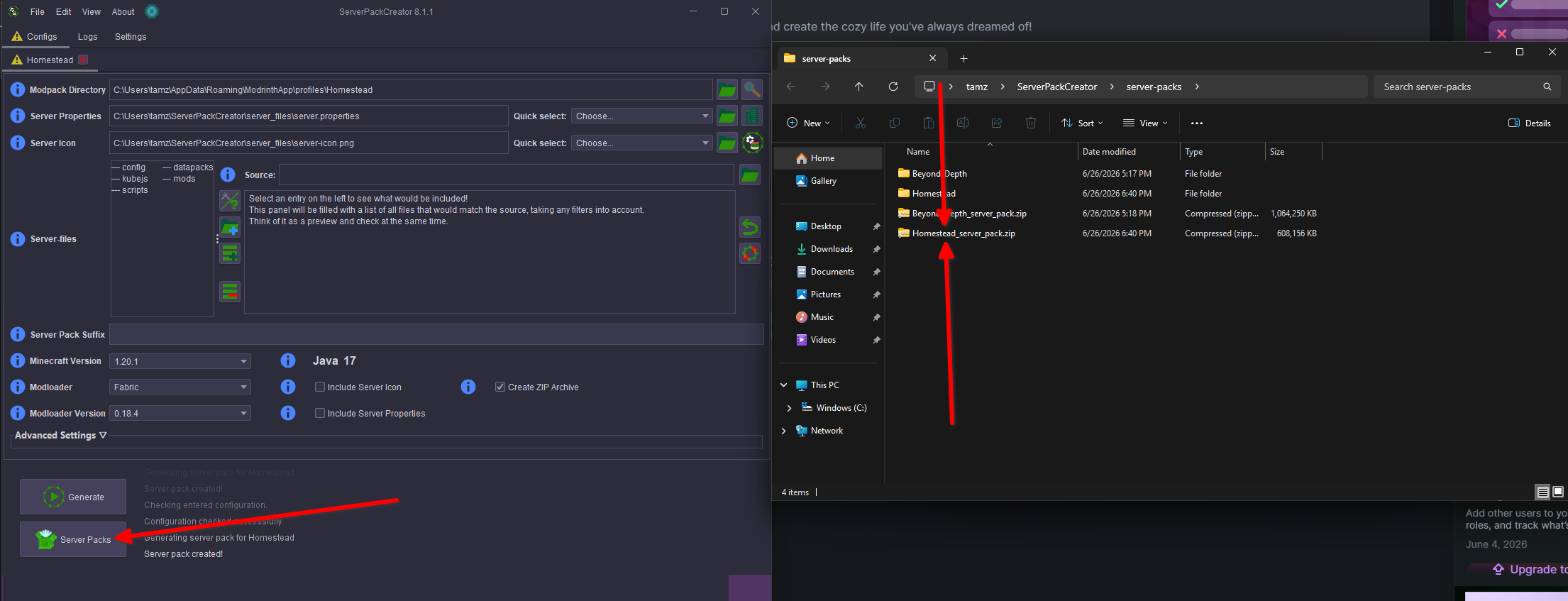
-
Once done, move on to part 2 of the guide below.
Steps:
- Open SPC and navigate to your modpack folder. To find out the modpack folder, left click your modpack once, then press "Folder" button on the right side. Then read the folder location and navigate to it from SPC.
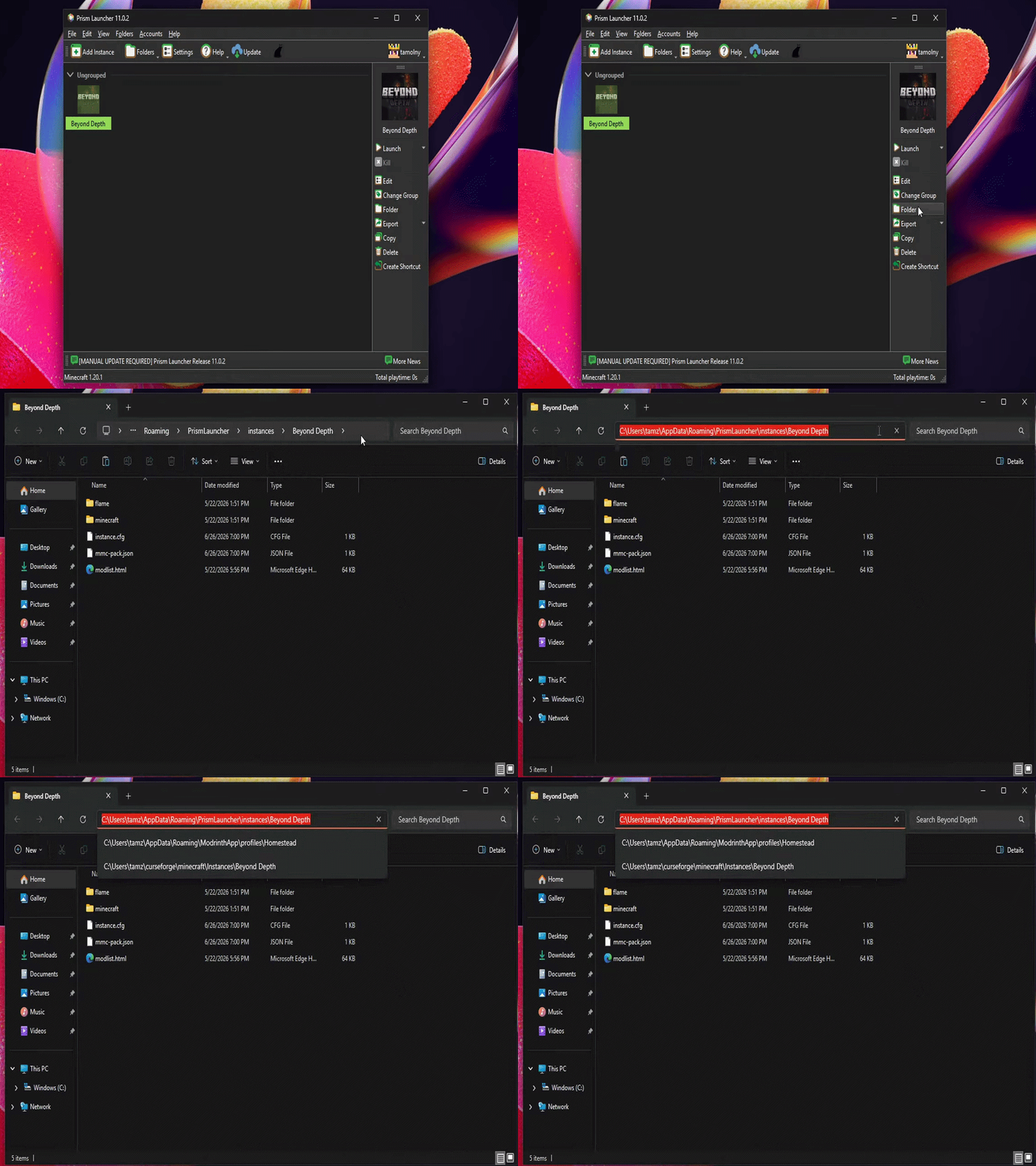
Please ensure you are using a version of serverpack creator that is 8.1.0 or higher, as older versions will not autodetect the mods, configs, and other folders from Prism Launcher automatically.
-
After entering the modpack folder, There should be an extra popup saying "Prism Launcher keeps the interesting files in a sub folder called minecraft. Would you like to use that directory instead?" Select Yes, Then SPC should automatically detect the mods, configs, and other folders that the modpack uses.
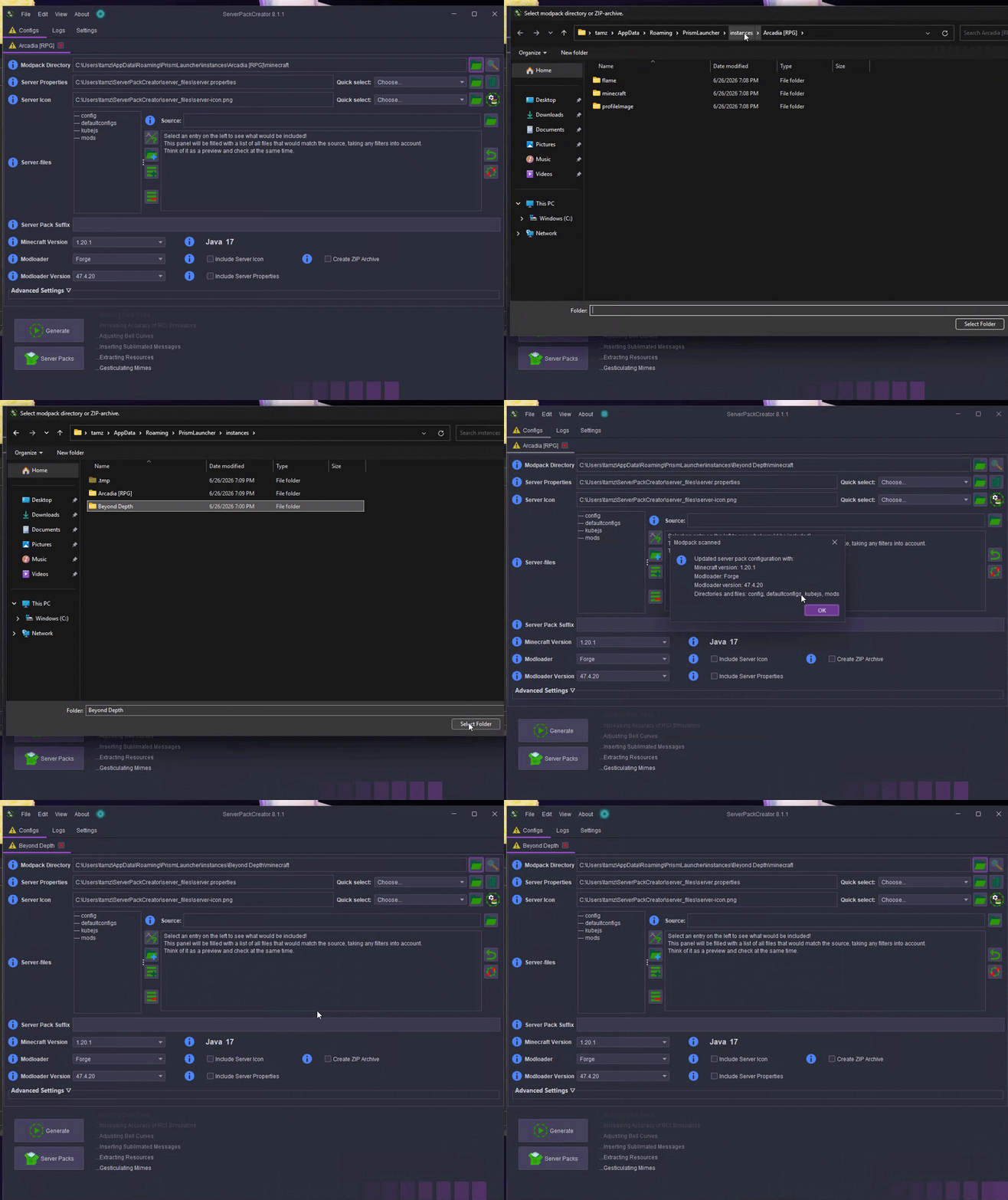
-
After you confirm everything in 2 is correct, click create ZIP archive, then Generate, and wait.
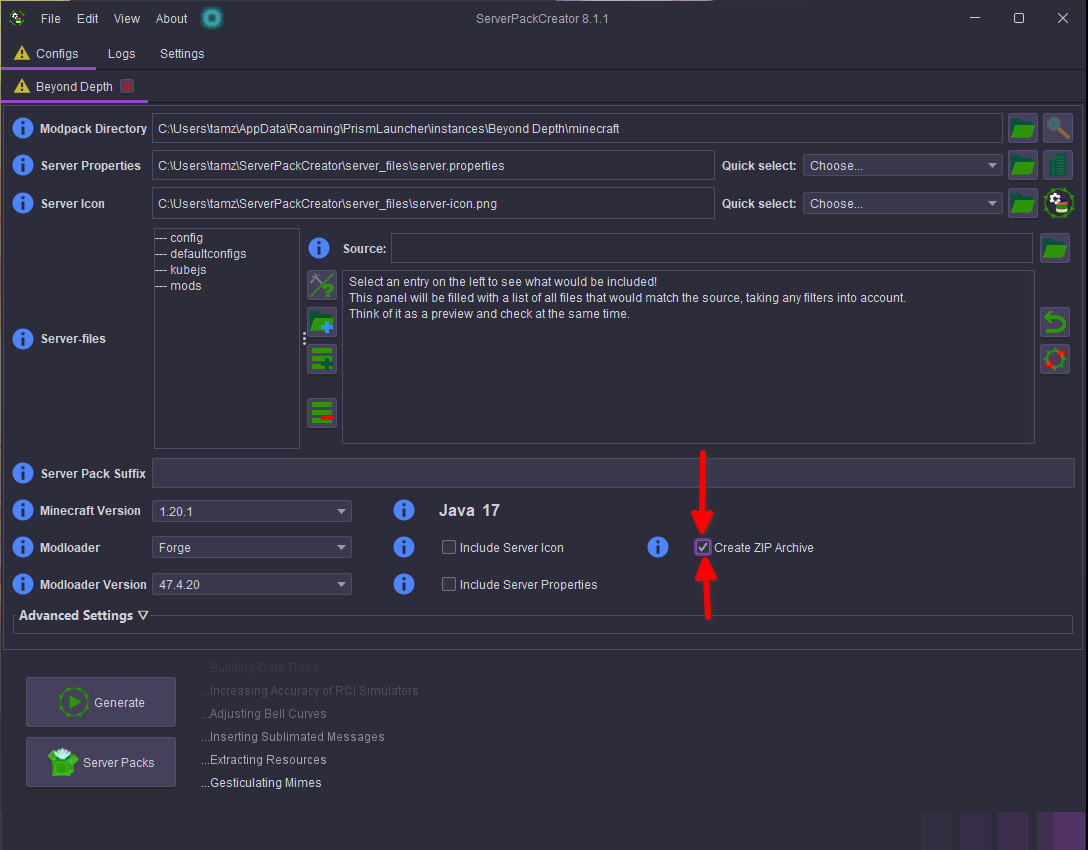
-
If successful, you will be prompted to open the Serverpacks folder. Select No. Instead, press Server packs under the generate command.
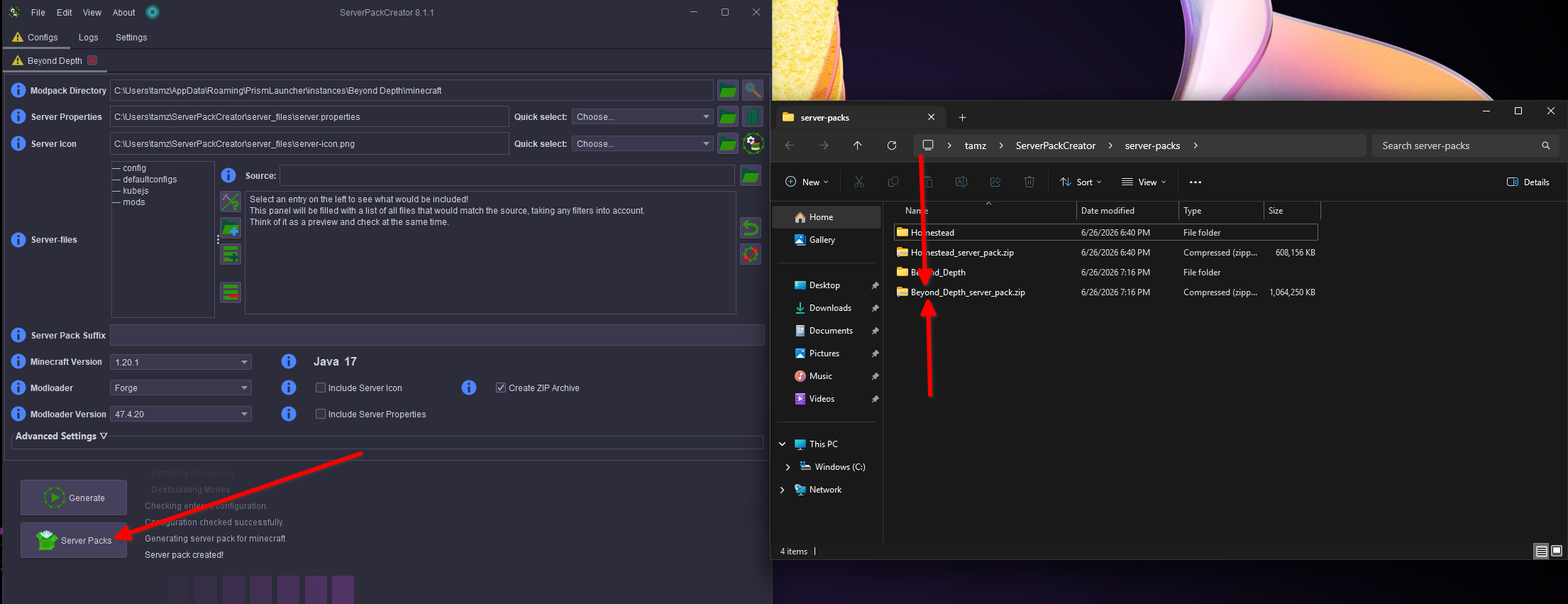
-
Once done, move on to part 2 of the guide below.
Part 2. Installing on panel.
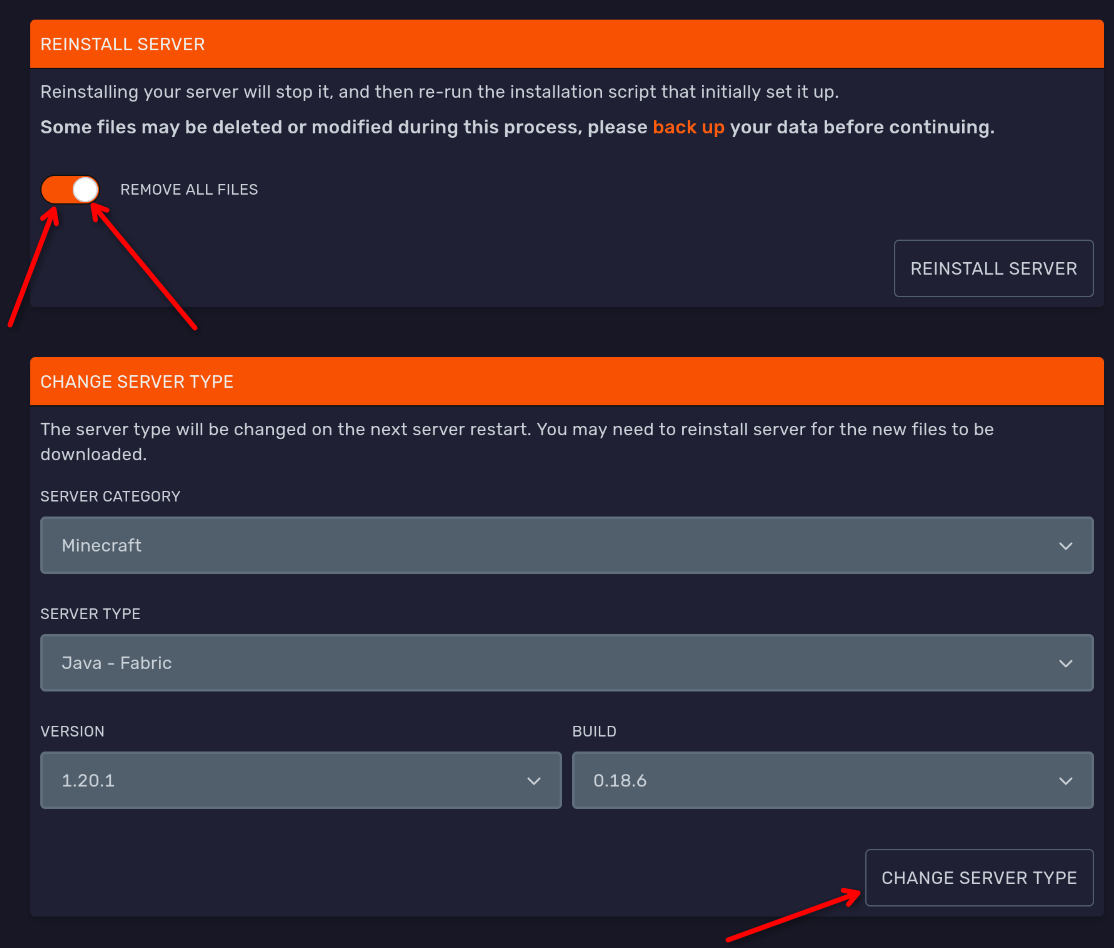
- To prepare for the server pack, start with installing the server jar, you can install the server jar with this simple method.
If you are confused on what jar to select, you can check the variables.txt file that SPC generates with the serverpack.
For example, below is the variables.txt Server type Fabric for Version 1.20.1 with Build 0.18.6.

1.1 Ensure for this step you click Remove all files before changing server type.
-
After the server jar is installed, you can upload the serverpack zip that was generated via sftp.
-
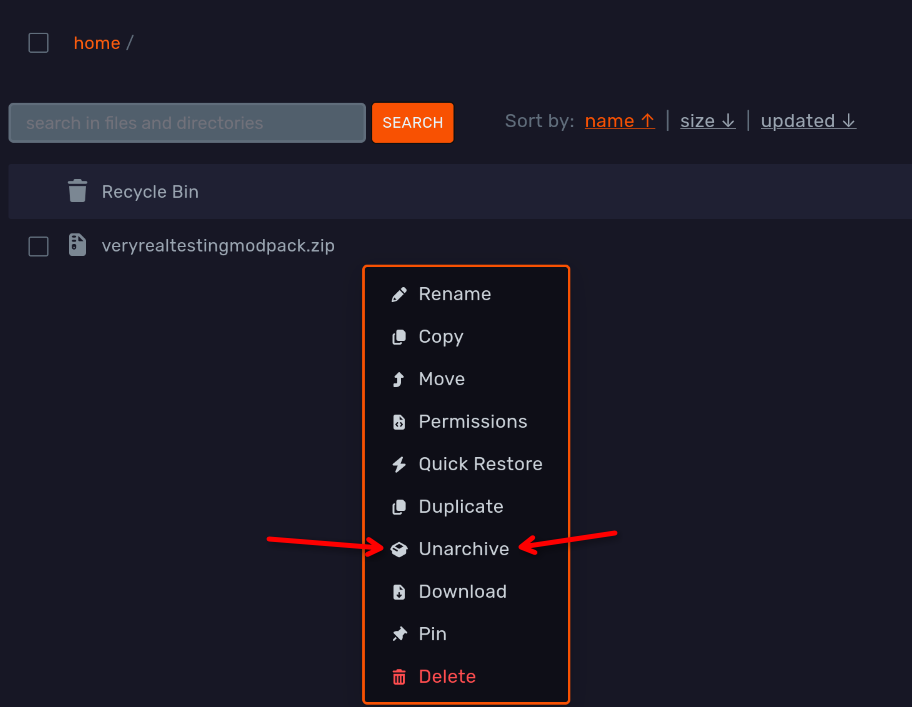
Once uploaded, extract the zip via the file manager by right clicking the zip and selecting unarchive.
-
Once unarchived, you can start the server, and enjoy the serverpack you just made!
If you need more help. Join the discord server.
Possible issues you may encounter.
Java version is not correct for the serverpack.
If you are encountering this issue, its a simple solution. You can change the java version via the popup that shows up when its wrong, or if that doesn't show up you can follow this guide to change the java version from the startup tab.